Session replay
Play one conversation step by step, see what each model call held, and test a change on a past step.
Session replay answers: what did my agent do in this conversation, and would a change have helped?
It plays one session in order: each ask, model call, tool search and tool call. It flags the steps to check. It is read-only.
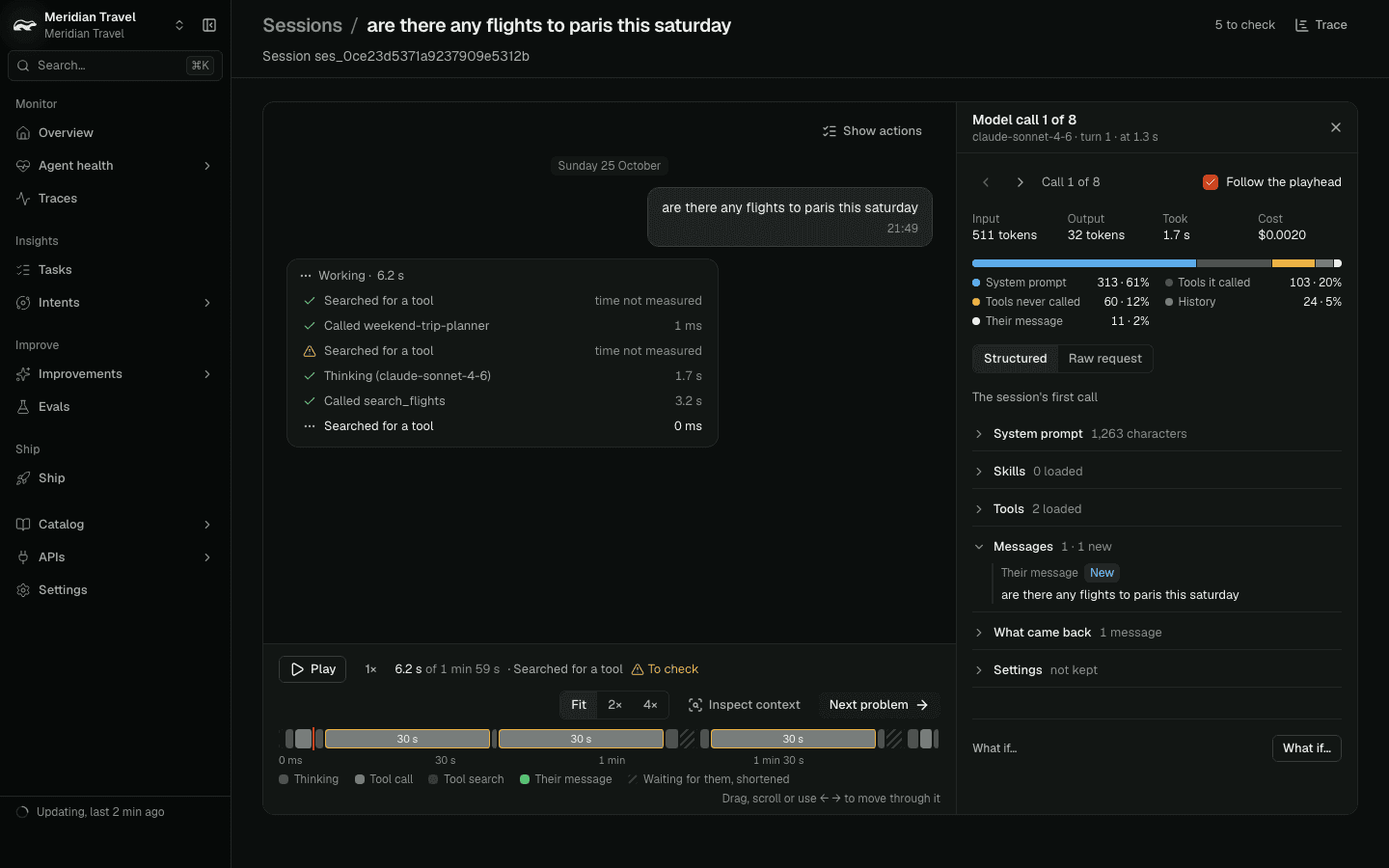
Open a session
- From Traces: on the Sessions tab, click a row, then Open session replay.
- From a turn: click Replay session.
- From a trace: click Part of session.
The page is titled with the session's first ask. The count at the top right says how many steps are to check, or Nothing to check.
The conversation
The left side shows each ask and the agent's work under it. Each line is one step: Searched for a tool, Called a tool, or Thinking (a model call), with how long it took.
A green check is a step that went well. A warning sign marks a step to check:
- A tool call that failed.
- Tried again after an error.
- Went in a loop.
- The person left before an answer.
A finished turn folds its work into one line. Show actions opens every step again.
The track
The track under the conversation is the session on a time axis.
- Play plays the session at 1×, 2× or 4×. Fit, 2× and 4× zoom the track.
- Next problem moves the playhead to the next step to check.
- Drag, scroll or use ← → to move through it.
The legend names each part: Thinking, Tool call, Tool search, Their message, and Waiting for them, shortened.
Inspect a model call
Inspect context opens the model call at the playhead, for example Model call 1 of 8. Keep Follow the playhead on to follow playback.
- Input, Output, Took and Cost of the call.
- A bar that splits the input: System prompt, Skills, Tools it called, Tools never called, History and Their message.
- Structured or Raw request: the system prompt, skills, tools and messages the call held, and What came back.
A large Tools never called share is context you could cut. See Find why your agent picks the wrong tool.
The Trace view
Click Trace at the top right to see one turn's full trace waterfall. Conversation goes back.
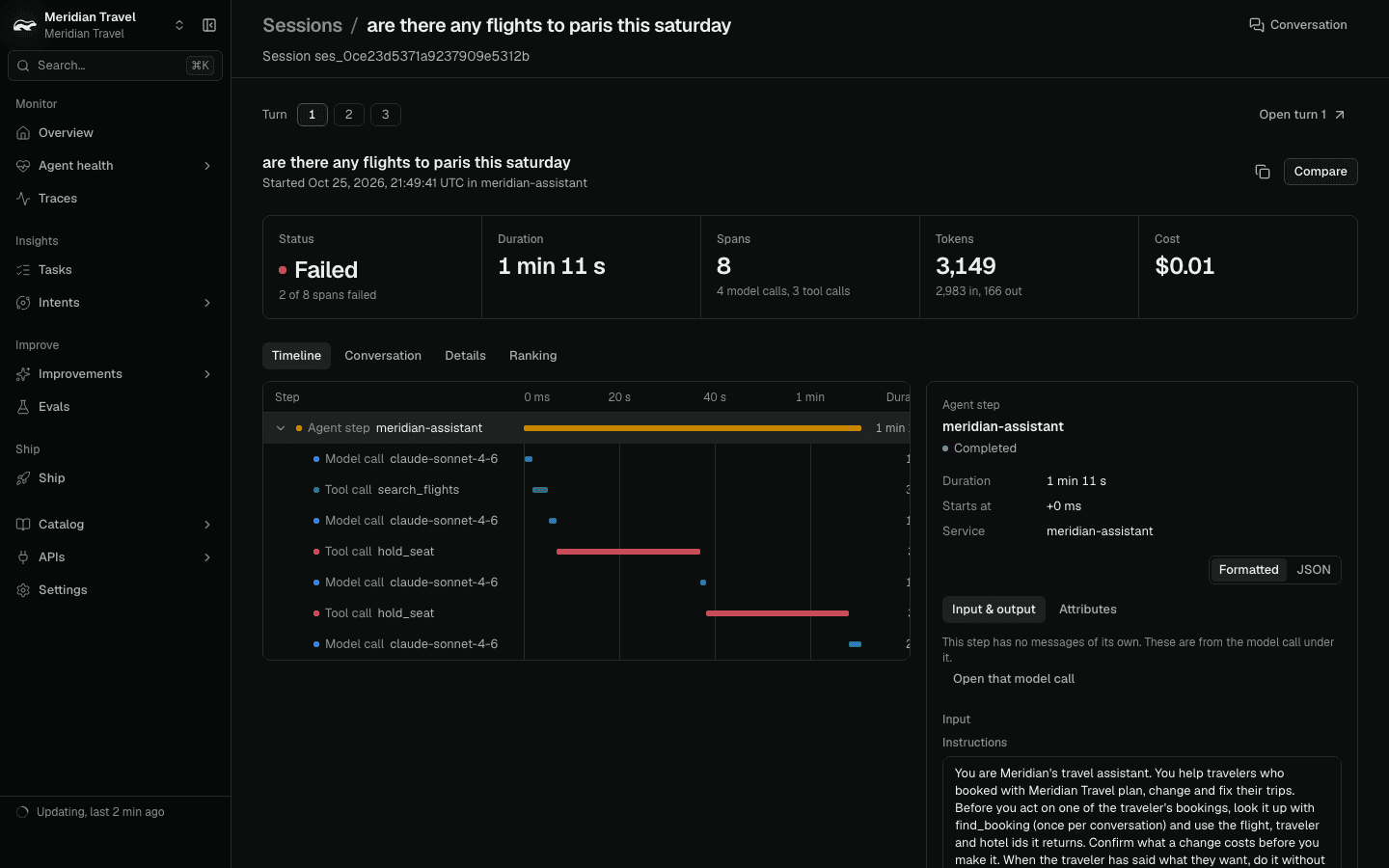
The trace is the same as in Traces.
What if…
What if… reruns one step of a past conversation with a change, and compares the tool the agent picks before and after. Use it to test a fix or a tool craft before you ship it.
- Move the playhead to a model call, then click What if….
- Pick a Change: A fix or a tool craft, A catalog override, An edited tool definition or Remove a tool.
- Pick the fix or tool, and set Runs per side.
- Click Run.
The result shows the Recorded choice, the choice Before and After, and how often each side picked each tool. It is a sample, not proof. Add to eval set keeps the case as an eval. See Evals.
With content reading on, What if… replays the model. Off, it re-ranks the step's search only, with no model call.
Message content
Message text shows only when your agent captures content and content reading is on.
- An admin turns it on in Settings: Read message content in session replay.
- Off, the page shows counts only.
Argument and query text never shows. See Data and privacy.